Documentation
Reading a diff
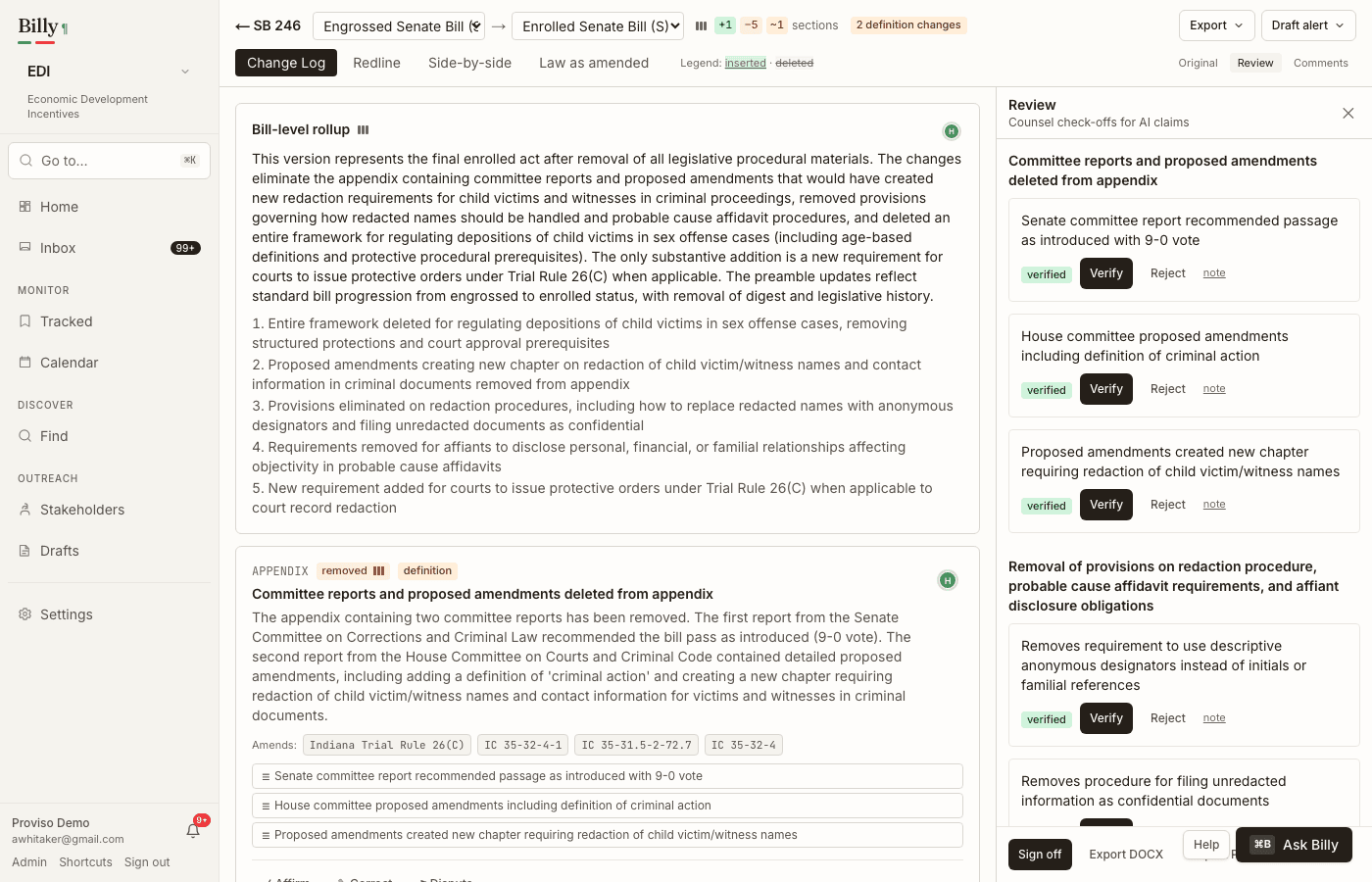
The centerpiece of Billy: three synchronized ways to see what changed between bill versions, with the original document one click away.
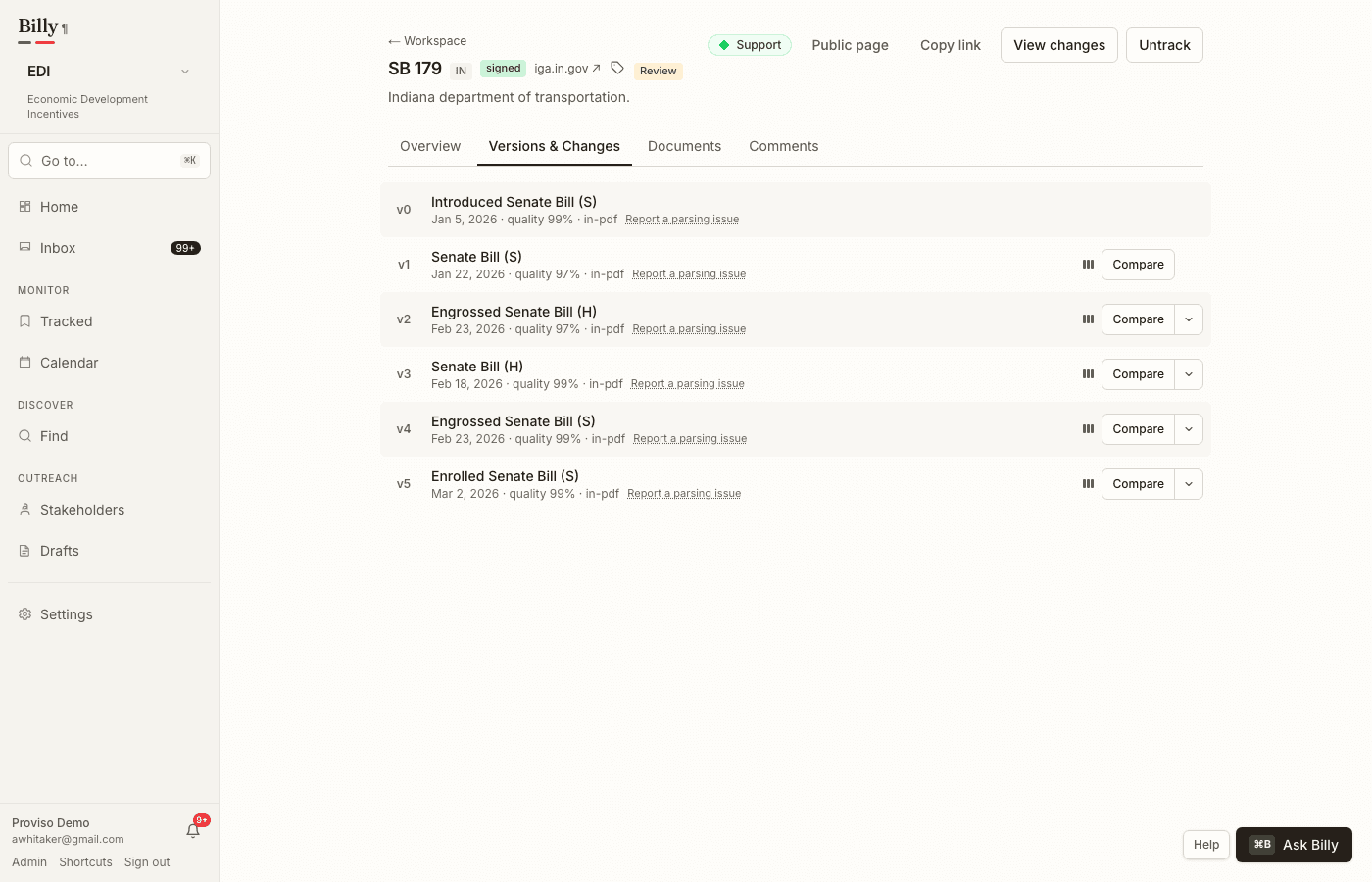
Open a version pair
From a bill’s Versions & Changes timeline, use Compare to diff against the previous version, or open the caret menu to pick any earlier pair. In the Diff Viewer, change the from/to selectors in the header to swap either side without leaving the page. Append ?mode=redline (or sidebyside / lawasamended) to deep-link into a specific mode; Change Log is the default.
Three viewer modes
- Change Log — AI section summaries (headline, plain English, numeric-change chips). Click a row to jump to that section in Redline mode. Review controls (affirm / correct / dispute) live here; open Review for the bill-level verification ledger. See AI summaries.
- Redline (inline) — version B with insertions green-underlined and deletions red-strikethrough. Unchanged text collapses to expandable context windows. A sticky mini-map shows where changes cluster.
- Side-by-side — A | B aligned by section, word-diff highlighting, synced scroll.
- Law as amended — for amendatory bills, how each cited code section would read if enacted (from the bill’s own strikethrough/insert markup). When the published Indiana Code is available, section badges show whether the bill’s “current law” matches that edition, and a chapter button opens the published code beside the bill for surrounding context. Details in Statutes.
Evidence panel
Click any AI claim, suggestion reason, or annotation to open the evidence panel — the original stored PDF (or rendered HTML/XML) with contributing regions highlighted. Sparse, multi-region, multi-page highlights are supported. Diff claims can highlight both the from- and to-version documents. A region count badge tells you how many spans were resolved (for example, “3 highlighted regions, pages 4, 4, 11”).
The same pane is the Diff Viewer's Original document view. Use the toolbar Original control to browse the stored bill document, or in original on a section to jump that pane to the matching span (from and to versions when the section was modified). The Diff Viewer is never the only source of truth.
Size, confidence, and caution
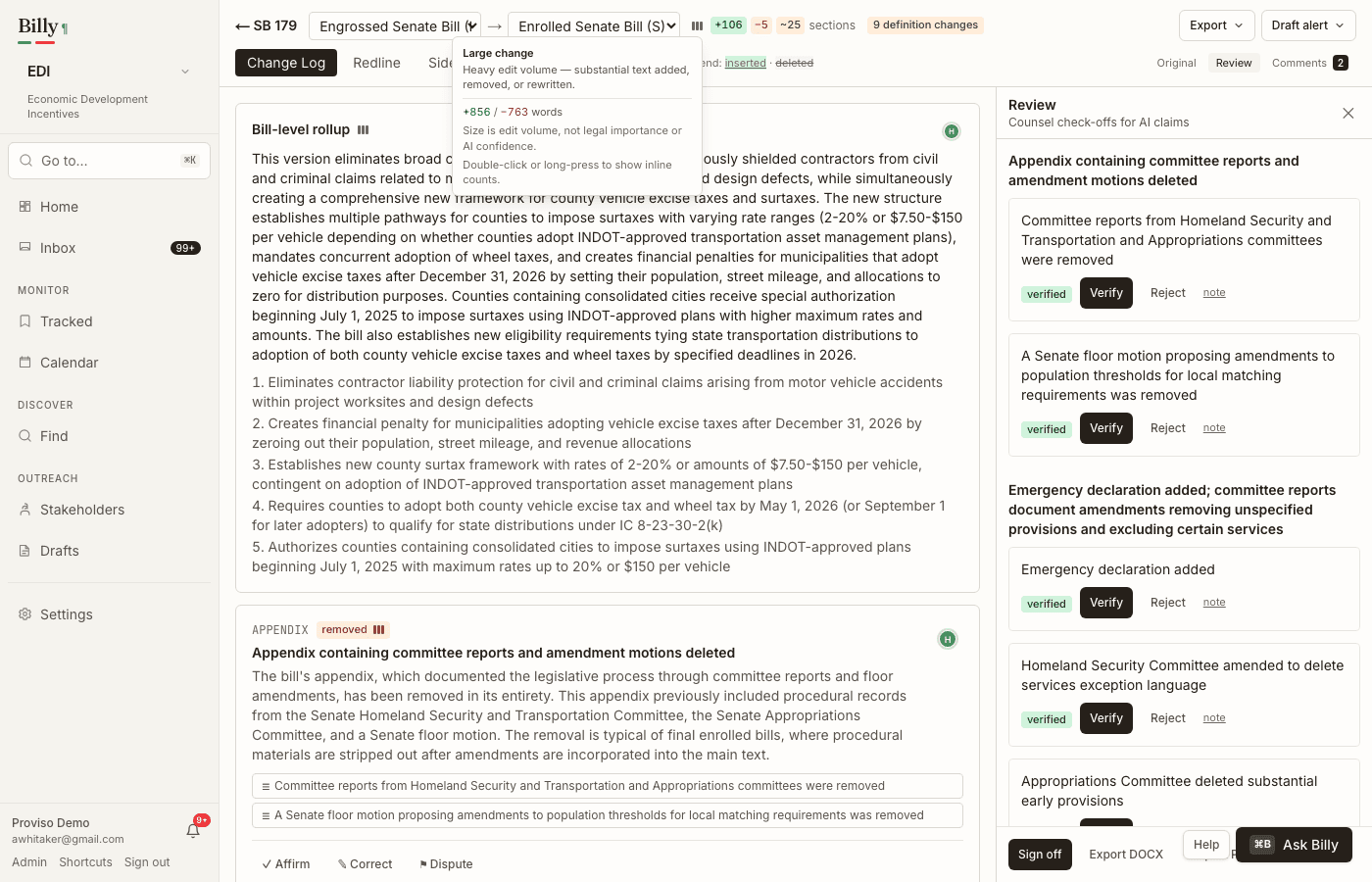
- Change type + size — the added / modified / removed chip includes a three-bar volume meter (small / medium / large edit). Hover or tap for the key, a short description, and word counts when available. Size is edit volume (how much text moved), not legal importance. Full section adds/removes use section word counts when text is available. The same meter appears on the bill-level header, feed rows, version timeline, and dashboard recent summaries.
- Size counts — meters default to a Small / Medium / Large label. Double-click or long-press the size tag to show or hide inline
+n/−mcounts. Counts always remain in the hover/tap tip. Preference is remembered in this browser. - Confidence — a small green / amber / red orb on the right of each section summary. It is an AI trust signal (how well claims are grounded in the bill text), not a measure of impact. Hover or tap for the label and description.
- Unverified evidence — if a quote cannot be located in the canonical text, the claim is downgraded and rendered in a caution state (amber badge, dashed highlight treatment) instead of confident PDF highlights.
- Low-confidence normalization — when document parsing quality is weak, Billy shows a caution badge and still offers the original PDF.
Markup legend
Two kinds of markup can appear. Do not confuse them:
- inserted between versionsVersion-diff insertion — language present in B that was not in A (Billy’s alignment).
- deleted between versionsVersion-diff deletion — language present in A that was removed in B.
- source amendatory markupSource markup — bold/strikethrough (or similar) as printed by the legislature in a single document, shown distinctly (for example dotted underline) so you can tell “what the state marked” from “what changed across versions.”
Copy and export
From the Diff Viewer Export menu you can download a Word redline, a change memo, or copy a redline excerpt — or draft a client or action alert. Tracked Bills adds the client status report and newsletter draft. Full detail: Exports & drafts.